

Top Ups
Overview
Top Up module lists all successful top-up transactions that have been credited to your available balance and is ready to be used for pay outs. A top-up may occur in same currency or cross-currency form — for example, when you make a top up in USDT and receive the credited balance in VND.
This module provides visibility into your balance inflows and allows you to verify credited amounts after payments are processed. Please note that top-ups may take some time to appear, as operational reconciliation is required to confirm that funds have been successfully received and validated.
To initiate a top-up, please contact [email protected] or reach out via your agreed communication channel.
Key Features
The Top Up section in the Xenith Dashboard provides tools to monitor, verify, and export your credited balance inflows.
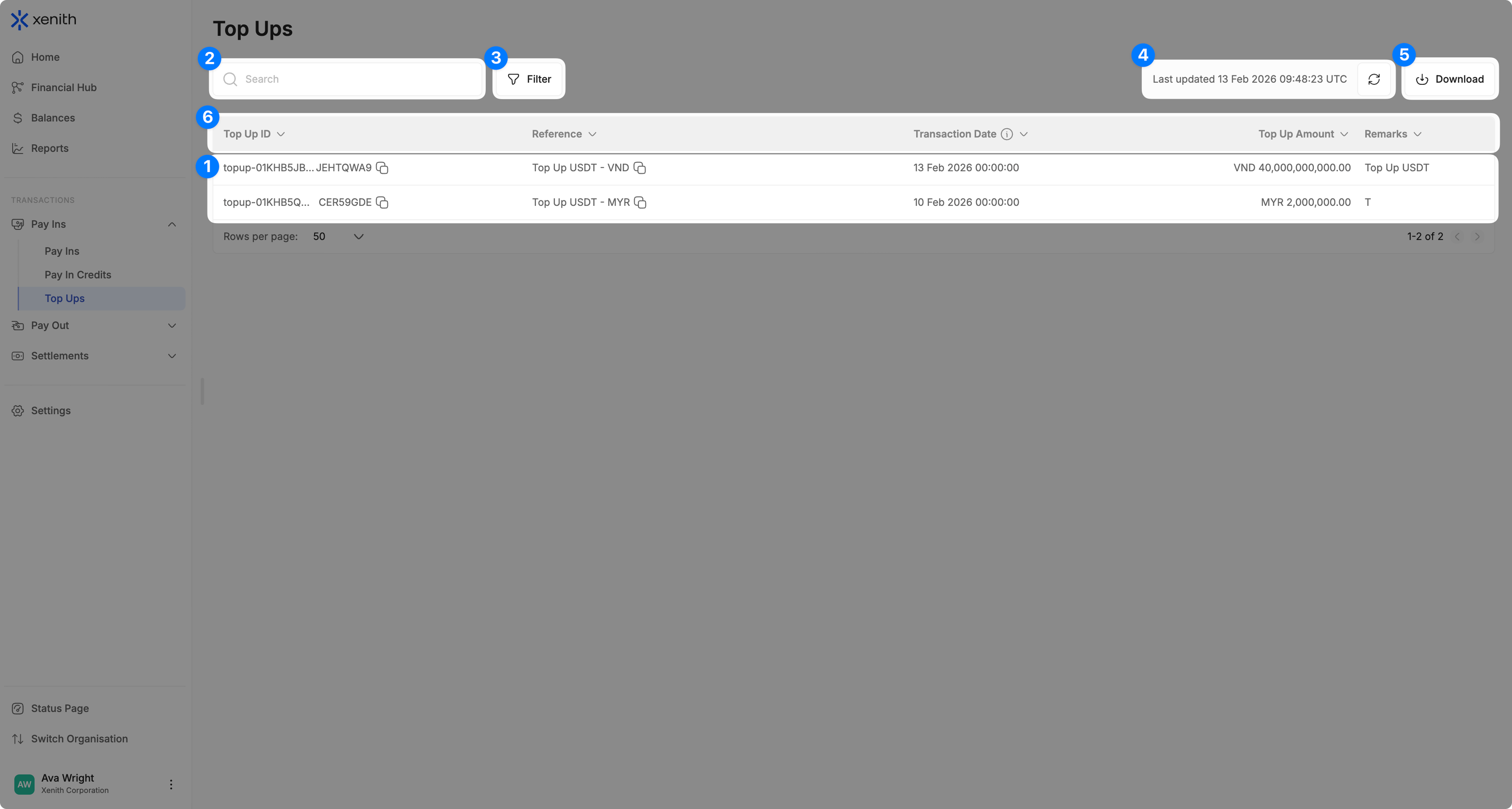
- Top Ups List: View all successful top-ups credited to your available balance. Clicking on a Top Up entry opens a Transaction Drawer displaying key details. From there, you can access the full Transaction Details page to review comprehensive information, including transaction status, payment breakdown, and any attached proofs.
- Search: Quickly locate top-up transactions using Top Up ID, Reference, or Remarks.
- Filter: Narrow down results based on Transaction Date, Currency, and Top Up Amount.
- Real-Time Updates: The table auto-refreshes every few seconds, or you can click the Refresh icon to manually update data.
- Download Transaction Data: Export your top-up data for reporting and reconciliation (up to 6 months per export). Follow the steps below to export your data:
- Initiate Download: Click the Download button in the top-right corner. Any applied filters will automatically reflect in your exported file.
- Select Date Range: Choose from predefined options ("Today", "This Week", "This Month", etc.) or set a Custom Range (up to 6 months).
- Choose Recipient Email: The report will be sent to your prefilled email, or you can select another within your organization.
- Select Columns: Choose which data fields you’d like to include for a more focused export.
- Download & Check Email: Click Download, then check your inbox (and spam folder) for the report file. Files under 5,000 rows are also available for direct browser download.
- Sort: Organize transactions by Top Up ID, Reference, Transaction Date, Top Up Amount, or Remarks in ascending or descending order.
Updated 4 months ago