

Webhook
There are two types of webhooks you need to set up and manage in Xenith:
- Webhook Signature Secret: a security key used to verify that incoming webhook events truly come from Xenith (authenticity check).
- Webhook: an endpoint configuration where you receive those webhook events (the actual delivery channel).
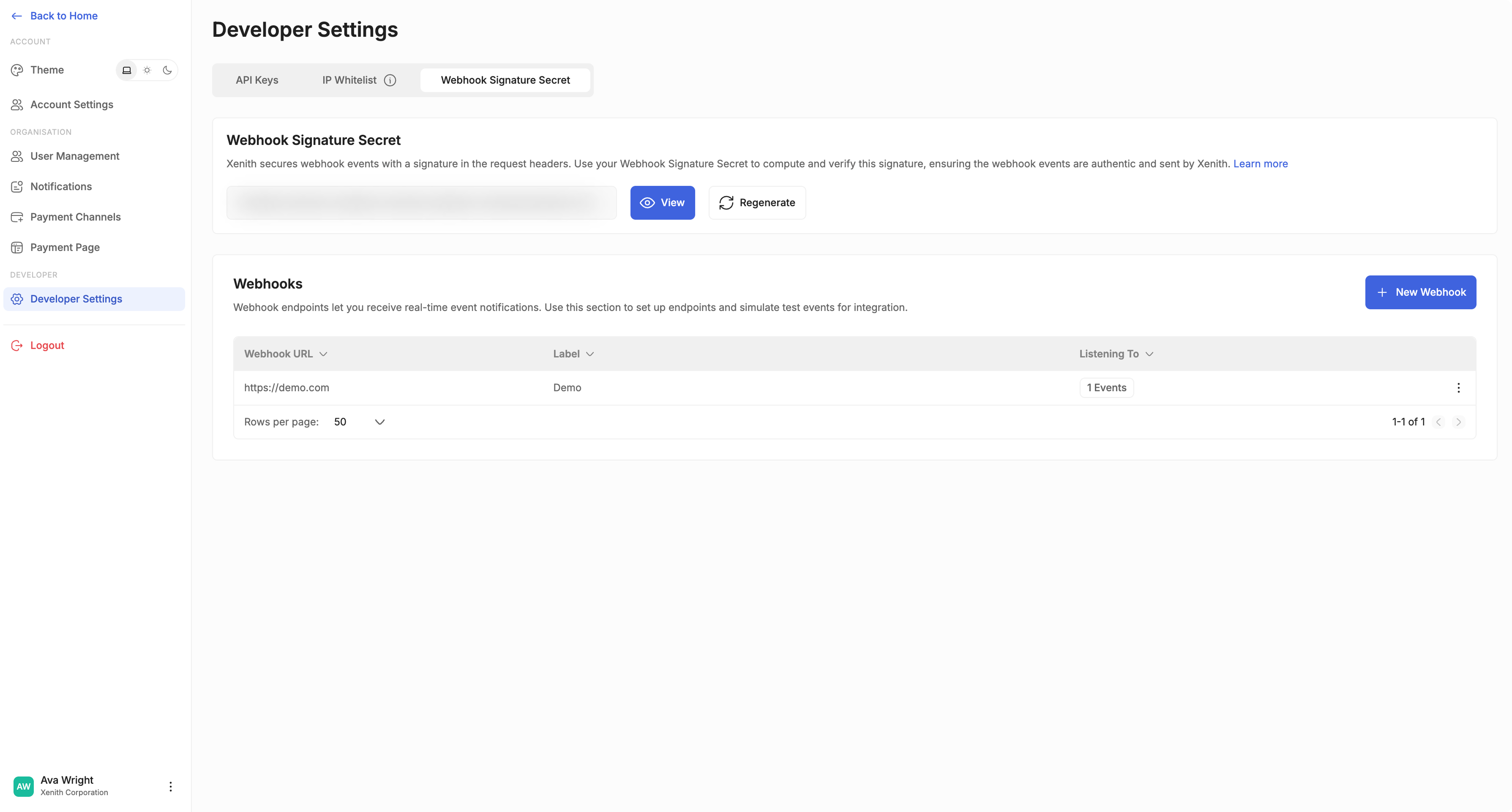
Webhook Signature Secret
Xenith secures webhook events by including a signature in each webhook request header. You can use your Webhook Signature Secret to compute and verify this signature, ensuring that incoming events are authentic and originate from Xenith. Learn more here.
View Webhook Secret
If you have the required permissions to access Developer Settings, you can retrieve your Webhook Signature Secret from the dashboard.
To view your secret:
- Navigate to Settings → Developer Settings → Webhook Signature Secret
- Click "View"
- Authenticate using the OTP sent to your registered email
- Once authenticated, your Webhook Signature Secret will be displayed
- Click "Hide" or navigate away to conceal the secret
Regenerate Webhook Secret
The Secret Regeneration feature allows you to rotate your Webhook Signature Secret directly from the dashboard. You may regenerate your secret in the following scenarios:
- Security incident response — If you suspect your secret has been exposed or compromised
- Regular security maintenance — As part of your internal security best practices
- Team changes — When personnel with access to credentials leave your organisation
To regenerate your secret:
- Navigate to Settings → Developer Settings → Webhook Signature Secret
- Click "Regenerate"
- Authenticate using the OTP sent to your registered email
- A new Webhook Signature Secret will be generated and displayed immediately
- Update your integration with the new secret to continue verifying incoming webhook events
Important Notes:
- Irreversible: Once regenerated, the previous webhook secret cannot be restored.
- Secret rotation: The new webhook secret takes effect immediately upon generation, and the previous secret will no longer be valid.
- Integration update required: Webhook signature verification may fail until your system is updated with the new secret.
- Automatic retry: Failed webhook deliveries will be retried using exponential backoff. Learn more here
- Environment-specific: Regenerating in production does not affect staging, and vice versa.
Webhook
Webhooks allow you to receive real-time notifications about specific activities, such as system maintenance or pay-in credit creation. You can configure webhook endpoints to receive these event payloads and simulate test events during your integration process.
Set Up a Webhook (e.g., for Maintenance Notifications)
-
Navigate to Settings → Developer Settings → Webhook
-
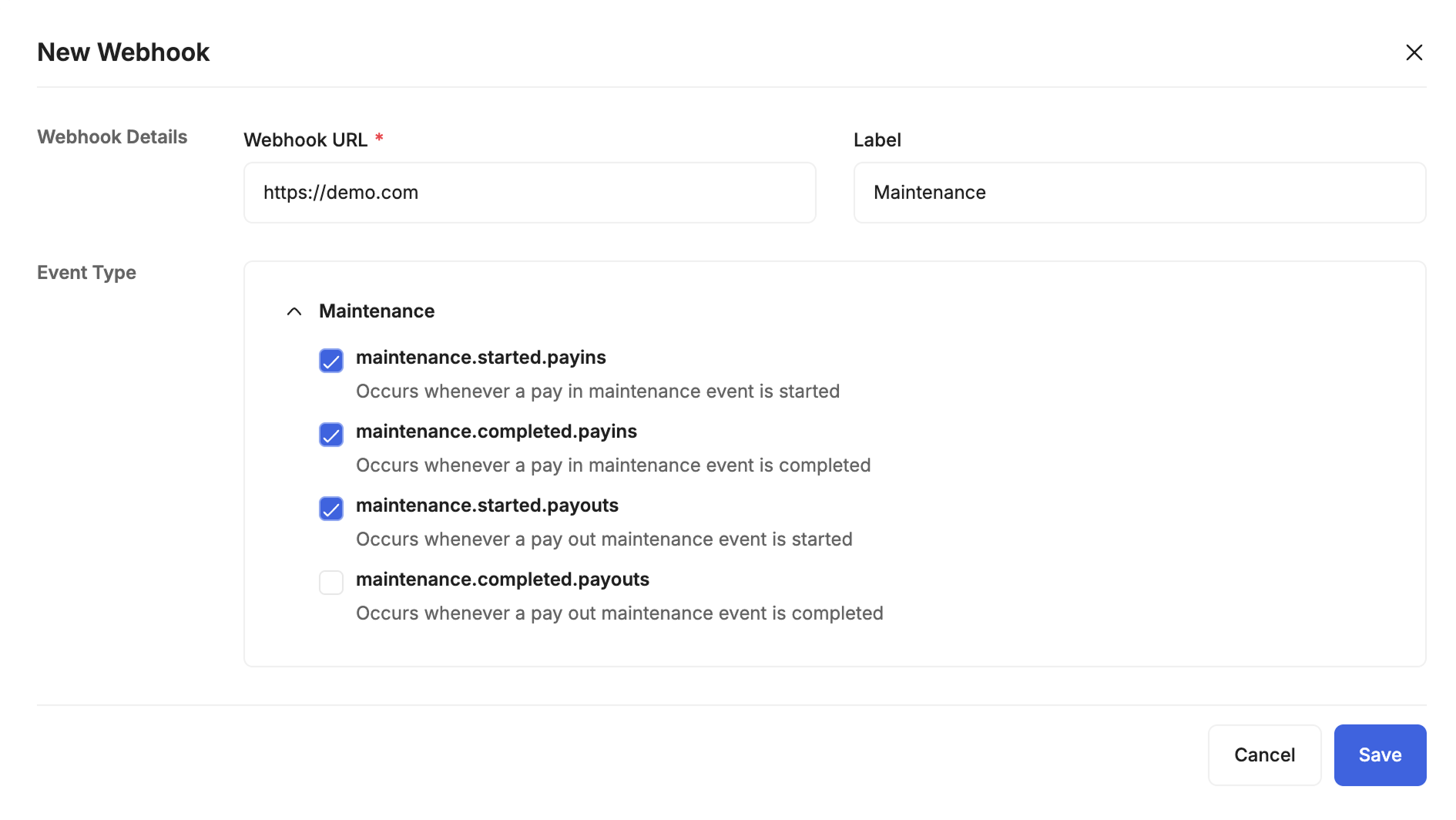
In the Webhooks section, click “+ New Webhook.”
-
Fill out the form by entering your destination Webhook URL and selecting the events you want to receive.
-
Click Save. When those events occur, Xenith will send webhook event payloads to the URL you specified.
You can edit the webhook URL, label, and selected events at any time if needed.
Simulate a Webhook
-
Navigate to Settings → Developer Settings → Webhook
-
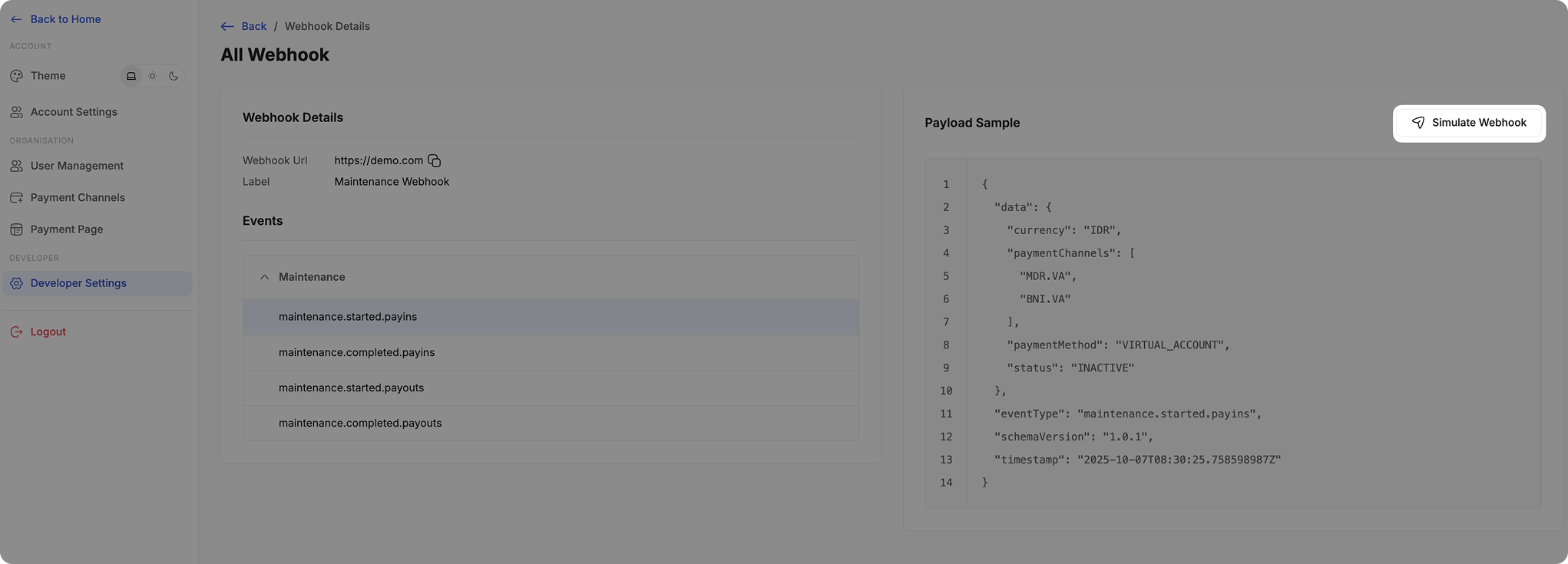
Click one of your existing webhooks to open its Webhook Details.
-
Review the sample payload displayed on the right.
-
Click Simulate Webhook to send a test payload to your configured Webhook URL.
Updated 7 months ago