

Trusted Beneficiaries
Overview
Trusted Beneficiary allows you to whitelist a beneficiary account for a specific combination of:
- Account Number (
destinationPayoutAccount) - Payment Method (
destinationPayoutMethod) - Payment Channel (
destinationPayoutChannel) - Currency (
currency) - Customer Reference (
customerReference)
The purpose of Trusted Beneficiary is to reduce repeated manual reviews when the same beneficiary account consistently triggers a name mismatch due to minor differences between the payer-provided name and the name returned during account inquiry.
When a Pay Out transaction results in a Name Mismatch, the system checks whether the beneficiary account has been registered as a Trusted Beneficiary. The transaction is automatically approved only when all of the above fields exactly match the Trusted Beneficiary record. Otherwise, the transaction follows the standard Name Mismatch review flow.
Currently, only IDR, MYR, and VND are supported for Trusted Beneficiaries.
Example
A beneficiary account has previously been approved and added as a Trusted Beneficiary.
| Parameter | Trusted Beneficiary |
|---|---|
| Account Number | 12345 |
| Payment Method | BANK_TRANSFER |
| Payment Channel | CENAIDJA |
| Currency | IDR |
| Customer Reference | ABC |
Later, a new Pay Out transaction is submitted to the same beneficiary account. During account inquiry, a name mismatch is detected:
| Payer Name | Beneficiary Name | Result |
|---|---|---|
| Alexaa John Brianna | Alexa John B | Name Mismatch |
Scenario 1: Trusted Beneficiary Match
The transaction details match the Trusted Beneficiary record exactly.
| Parameter | Incoming Transaction |
|---|---|
| Account Number | 12345 |
| Payment Method | BANK_TRANSFER |
| Payment Channel | CENAIDJA |
| Currency | IDR |
| Customer Reference | ABC |
Outcome: The transaction is automatically approved and continues processing despite the name mismatch.
Scenario 2: Trusted Beneficiary Mismatch
The transaction details do not fully match the Trusted Beneficiary record.
| Parameter | Incoming Transaction |
|---|---|
| Account Number | 12345 |
| Payment Method | BANK_TRANSFER |
| Payment Channel | CENAIDJA |
| Currency | IDR |
| Customer Reference | XYZ |
Outcome: The transaction is not automatically approved and follows the standard Name Mismatch review flow.
Key Features
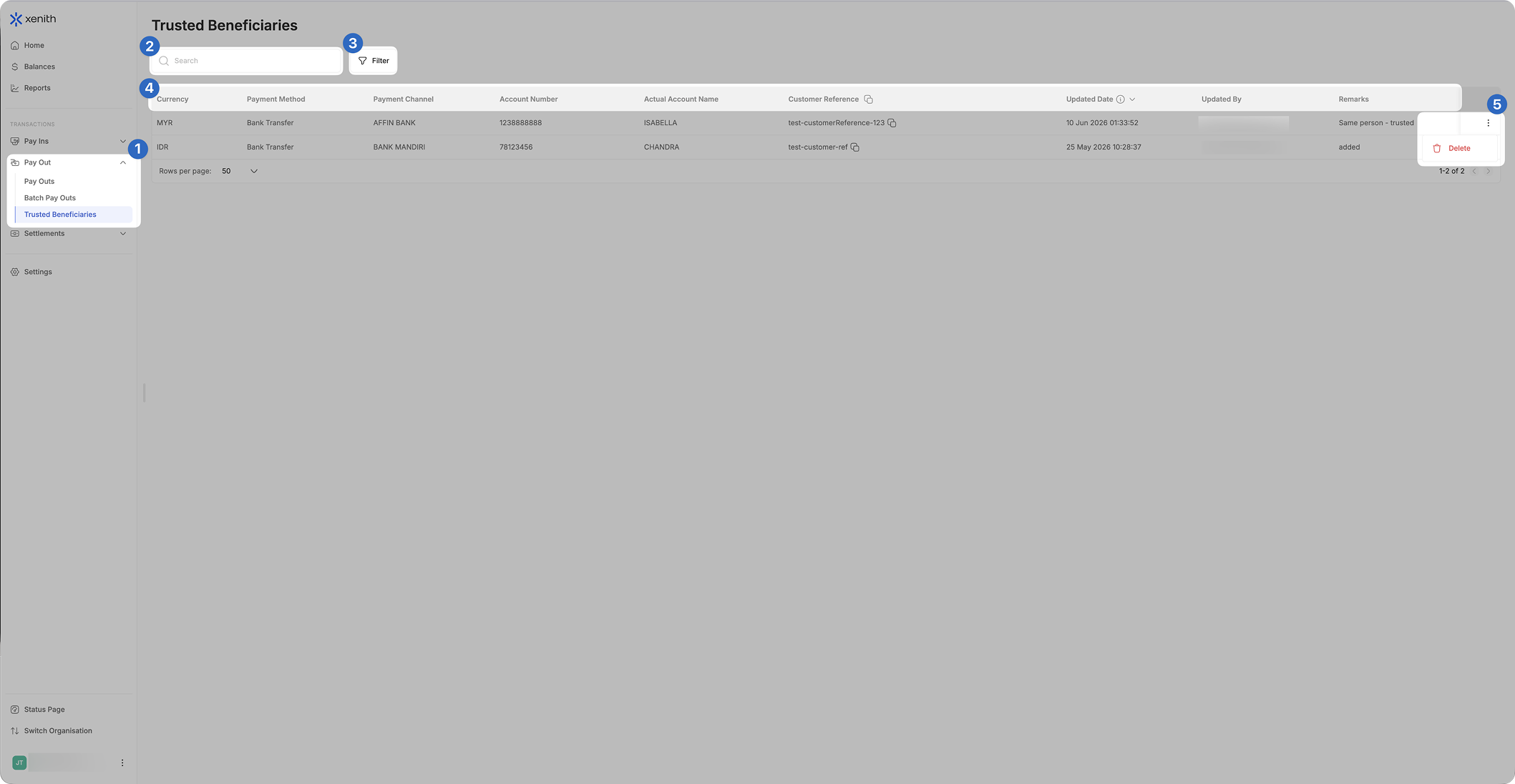
- Navigate to Trusted Beneficiaries: Navigate to the “Pay Out” section on the sidebar menu, and click “Trusted Beneficiaries”.
- Search: Locate entries by entering the exact Account Number or a partial/full Actual Account Name.
- Filter: Narrow down results by Currency, Payment Method, Payment Channel, Updated Date, or Updated By.
- Trusted Beneficiary Details: Each entry displays the following information:
- Currency: The currency of the entry.
- Payment Method: The payment method associated with the entry.
- Payment Channel: The payment channel associated with the entry.
- Account Number: The beneficiary account number.
- Actual Account Name: The name registered in the bank's record, not the name submitted in the original transaction request.
- Customer Reference: The customer reference associated with the entry.
- Updated Date: When the entry was last updated. Hover for timezone tooltip.
- Updated By: The user who last created or updated the entry. Shows System if the action was performed by the Xenith team.
- Remarks: Free-text notes associated with the entry.
- Action icon: drop down list of actions that can be done on each of the entry
Managing Trusted Beneficiaries
User Access Management
Access to the Trusted Beneficiaries module can be configured per user in the User Management section of your dashboard.
Adding a Trusted Beneficiary
Trusted Beneficiaries are added through the standard Pay Out approval flow when you approve a transaction flagged for Name Mismatch review.
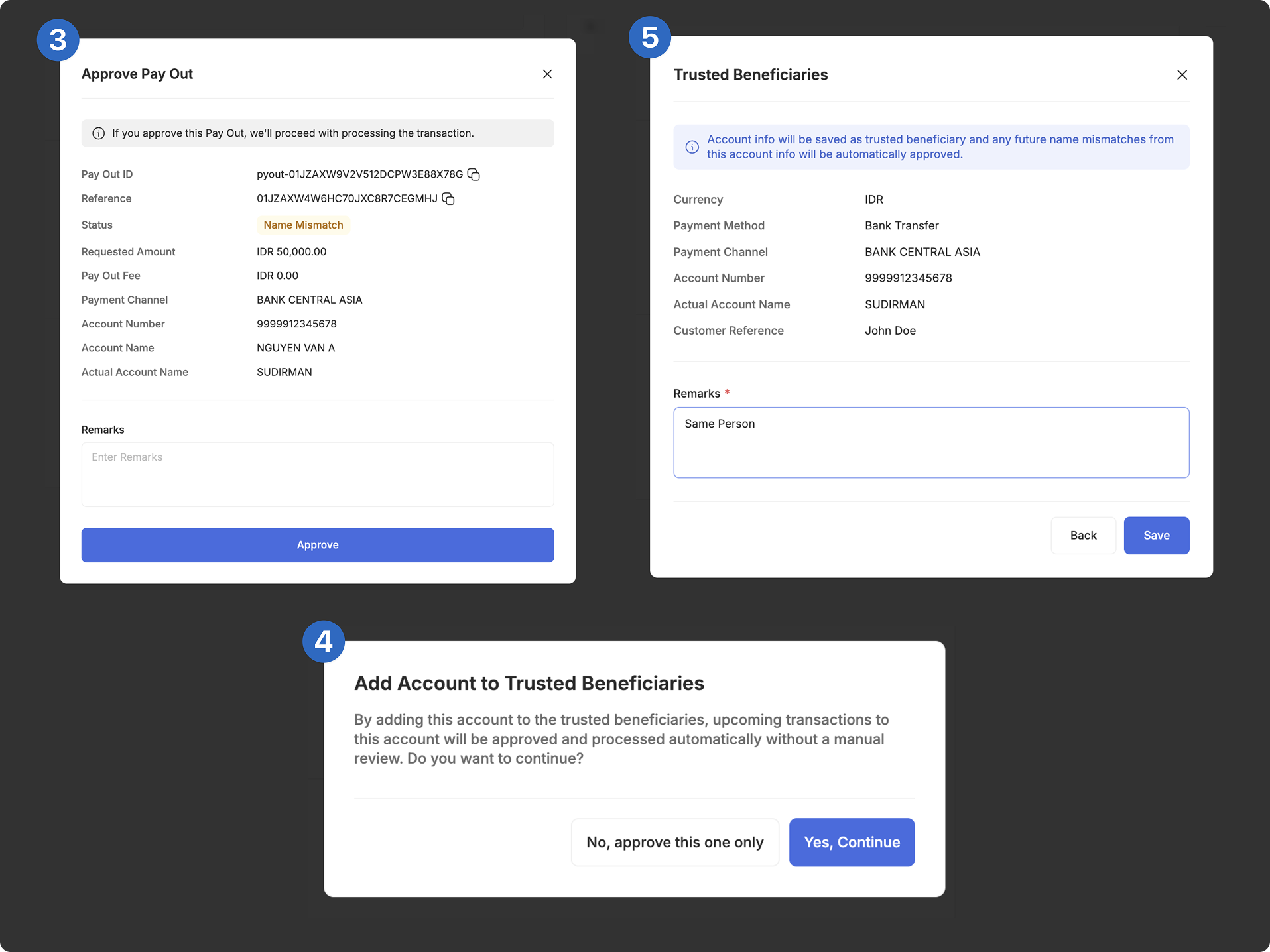
To add Trusted Beneficiaries while manually reviewing a Name Mismatch transaction in the Pay Out page, follow these steps:
- Select the Transaction: Go to the Pay Out page, and click on the Name Mismatch transaction you want to approve.
- Click "Approve": In the transaction details page, click "Approve".
- Review and Verify: Check the recipient’s details, including provided account name, provided account number, and bank’s recorded name. (Optional) Add remarks if needed. If all details are correct, click "Approve".
- Trusted Beneficiaries Confirmation: A confirmation pop-up will appear asking whether to add this account to your Trusted Beneficiaries. Click "Yes, Continue" to approve and whitelist the account. Once whitelisted, future Pay Outs matching this account will be auto-approved.
- Trusted Beneficiaries Review: Once you choose "Yes, Continue" in step 4, a confirmation pop-up will appear. Remarks is mandatory to continue. If all details are correct, click “Save”.
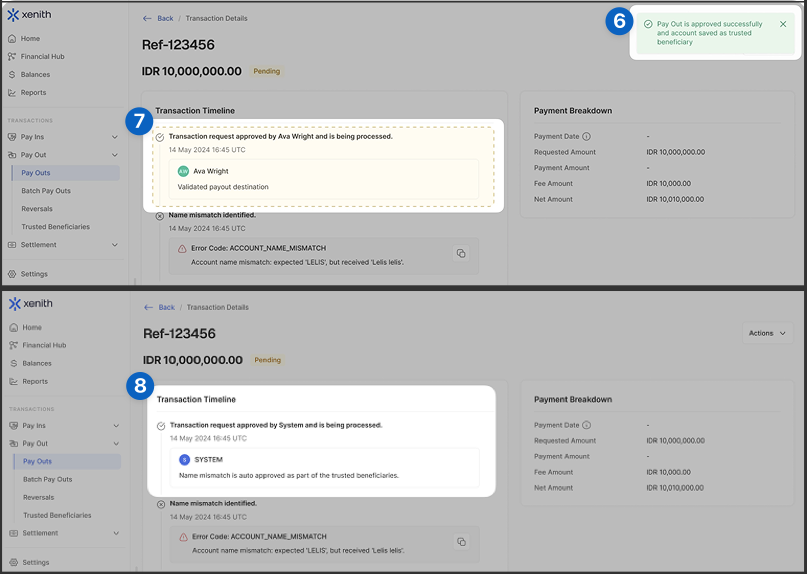
- Transaction Processing - Trusted Beneficiaries Added: The transaction will be processed using the bank’s recorded name, and recipient details will be added as Trusted Beneficiaries.
- Approved Name Mismatch Transaction Timeline: In cases where an approved Name Mismatch transaction is also added as Trusted Beneficiaries, the approver’s username will be recorded in the Transaction Timeline.
- Auto-Approved Trusted Beneficiaries Transaction Timeline: For future transactions involving the already recorded Trusted Beneficiaries, the approver will be recorded as "System," with remarks indicating that the transaction was auto-approved as part of the Trusted Beneficiaries process.
For the full details on Name Mismatch Handling, please refer here.
You may request to edit the Account Number, Customer Reference, or Remarks of a Trusted Beneficiary record by contacting us through your communication channel or by emailing [email protected].
Deleting a Trusted Beneficiary
- Locate Entry: Find the entry in the table and verify that it is the correct one to be deleted by checking the details. Once confirmed, click the action icon and click “Delete”
- Confirm Deletion: To confirm deletion, click “Confirm” on the confirmation pop up.
- Deletion’s Confirmed: Once confirmed, the entry is removed from your Trusted Beneficiaries list immediately.
Deletion is permanent. Please ensure targeted entry is the correct one to be deleted before executing any deletion. Once the entry is deleted, any future name mismatches triggered by the deleted beneficiary will no longer be part of the Trusted Beneficiary process and will instead follow your configured name mismatch settings.
Updated 3 months ago