

Activity Log
Overview
Activity Logs provide a chronological record of important actions in your Xenith account, including who or what performed them, when they occurred, and what changed.
Use Activity Logs to investigate account changes, review security-sensitive activity, and trace updates to specific modules. Sensitive information may be hidden or masked.
Key Features
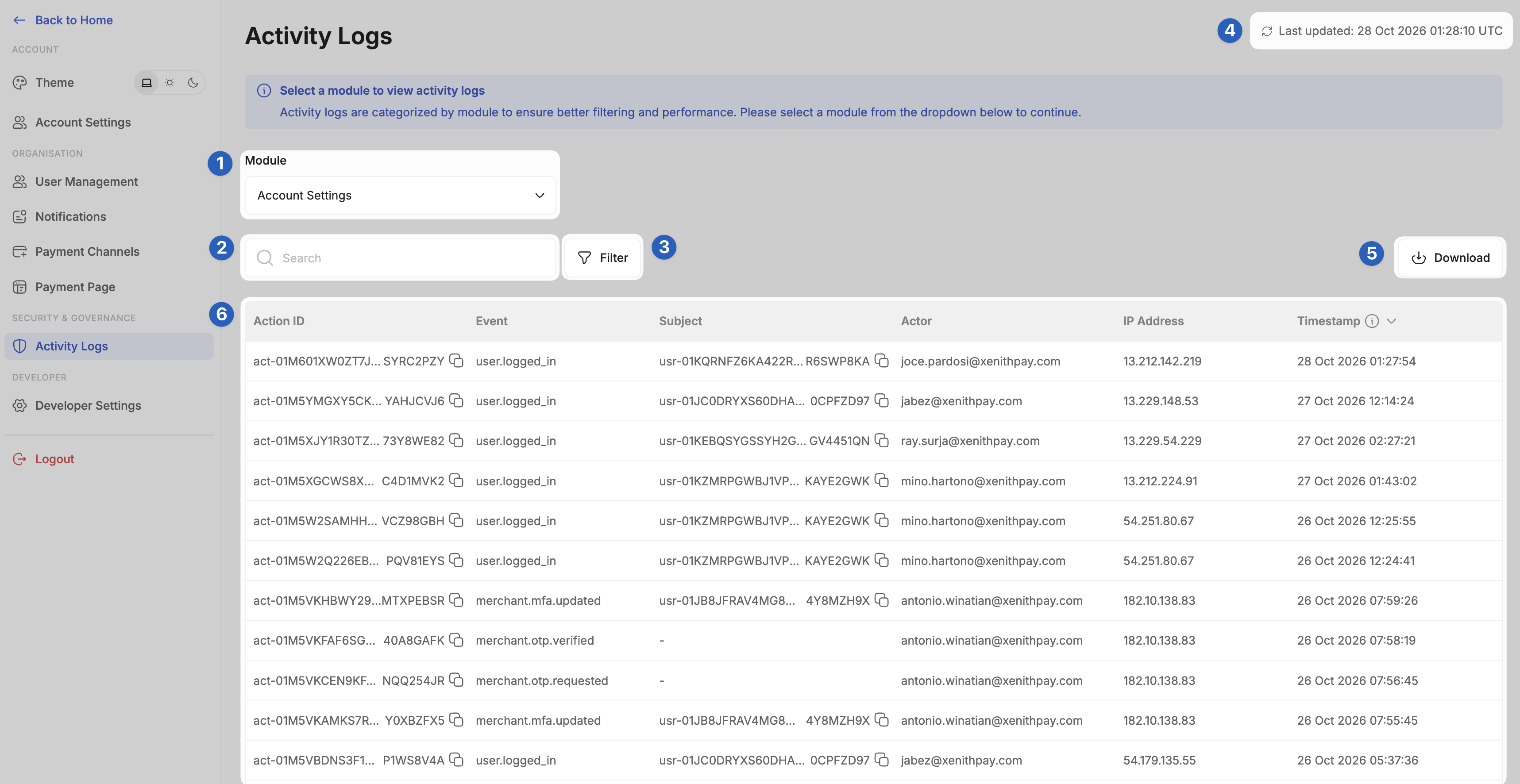
- Module Selector: Select the Xenith module you want to investigate, such as Pay Ins, Pay Outs, Settlements, User Management, or Developer Settings. The list updates to display activities associated with the selected module.
- Search: Quickly locate an activity using an exact Action ID, IP address, or user email.
- Filter: Narrow down the activity list using available attributes such as actor, event, subject, currency, payment method, payment channel, or timestamp.
- Refresh and Last Updated: Activity Logs are updated as new activities become available. Click the Refresh icon to retrieve the latest records. The Last Updated timestamp is displayed according to your configured timezone.
- Download: Export the activity list as a .csv file and send it to the email address registered to your account.
- Activity Logs List: View recorded activities across your Xenith account. Each activity includes an Action ID, event, affected subject, actor, IP address when available, and timestamp.
- Activity Details: Click an Activity Log entry to review additional information about the action, including the actor, affected resource, source, and recorded changes.
Activity Details
Selecting an Activity Log opens its detailed information. Depending on the activity, the details may include:
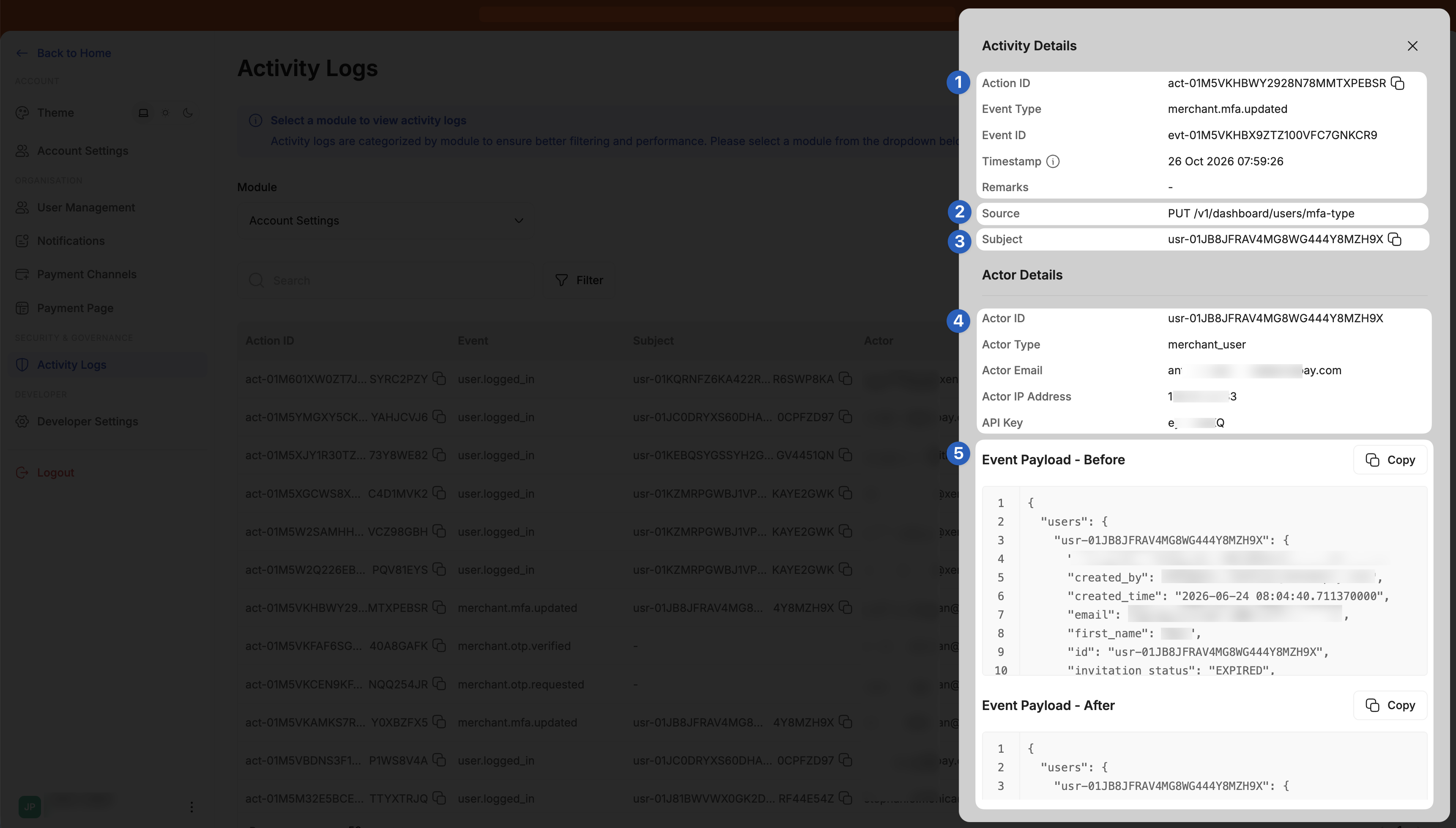
- Action Details: Review the permanent Action ID, individual Event ID, event type, timestamp, and any available remarks.
- Source: Review the service or endpoint from which the activity originated when this information is available.
- Subject: View the resource affected by the activity, such as a user, transaction, beneficiary, or payment channel. When a corresponding detail page is available, you can use the provided link to open the affected resource.
- Actor Details: Identify who or what performed the action. The actor may be a Xenith user, merchant user, scheduler, automation, gateway, or other supported system actor.
- Changes: For activities that modify data, Activity Logs may display sanitized information from before and after the action. Fields changed by the activity are highlighted to make the update easier to identify.
How Activities Are Recorded
A single action in Xenith may generate multiple pieces of technical evidence. We groups related evidence under the same Action ID so that one operation can be reviewed as a single activity instead of several unrelated records.
Some additional behaviours to be aware of:
- The identity of a user at the time of an event is preserved even if that user is later renamed, disabled, or removed.
- Bulk operations may produce separate activities for individual affected records so that each result remains traceable.
- Failed, denied, or no-change attempts may also appear when the activity is security-relevant or operationally important.
- Newly generated activities normally appear shortly after the action is performed. In exceptional cases, processing may take several minutes.
Updated 18 days ago
Did this page help you?